

AI for Interior Designers, Connecting Atelier to ChatGPT and Claude
We built Atelier to work with AI from the start. Bring project details, meeting notes, documents and emails into one conversation with ChatGPT or Claude.

We built Atelier to work with AI from the start.
Interior designers manage product selections, specifications, budgets, supplier details and client decisions. We wanted to bring that information together and make it useful when working with AI.
Atelier’s MCP connection lets you work with your project information through ChatGPT and Claude. When your other tools are connected to the same assistant, you can bring project details, meeting notes, documents and emails into one conversation.
The goal is simple. Spend less time moving information between tools and more time using it to move your project forward.
What is the Atelier MCP connection?
MCP stands for Model Context Protocol. It gives AI assistants a way to access information and carry out actions in connected tools.
For Atelier, this means making project information and supported actions available to ChatGPT and Claude.
You can ask your assistant to work with that information using everyday language. When other services are connected, the assistant can use them alongside Atelier, depending on the access you’ve enabled.
Here’s how these connections can fit into a designer’s working day.
Turn client meeting notes into project tasks
A client meeting can lead to several changes at once.
The client wants a smaller sofa, different lighting and a lower budget. Before looking for new options, you need to compare those requests with the current project.
With access to your meeting notes and Atelier project details, your AI assistant can help you prepare the next steps.
Compare these meeting notes with the living room selections in Atelier. Show me what needs to change and prepare a task list for my review.
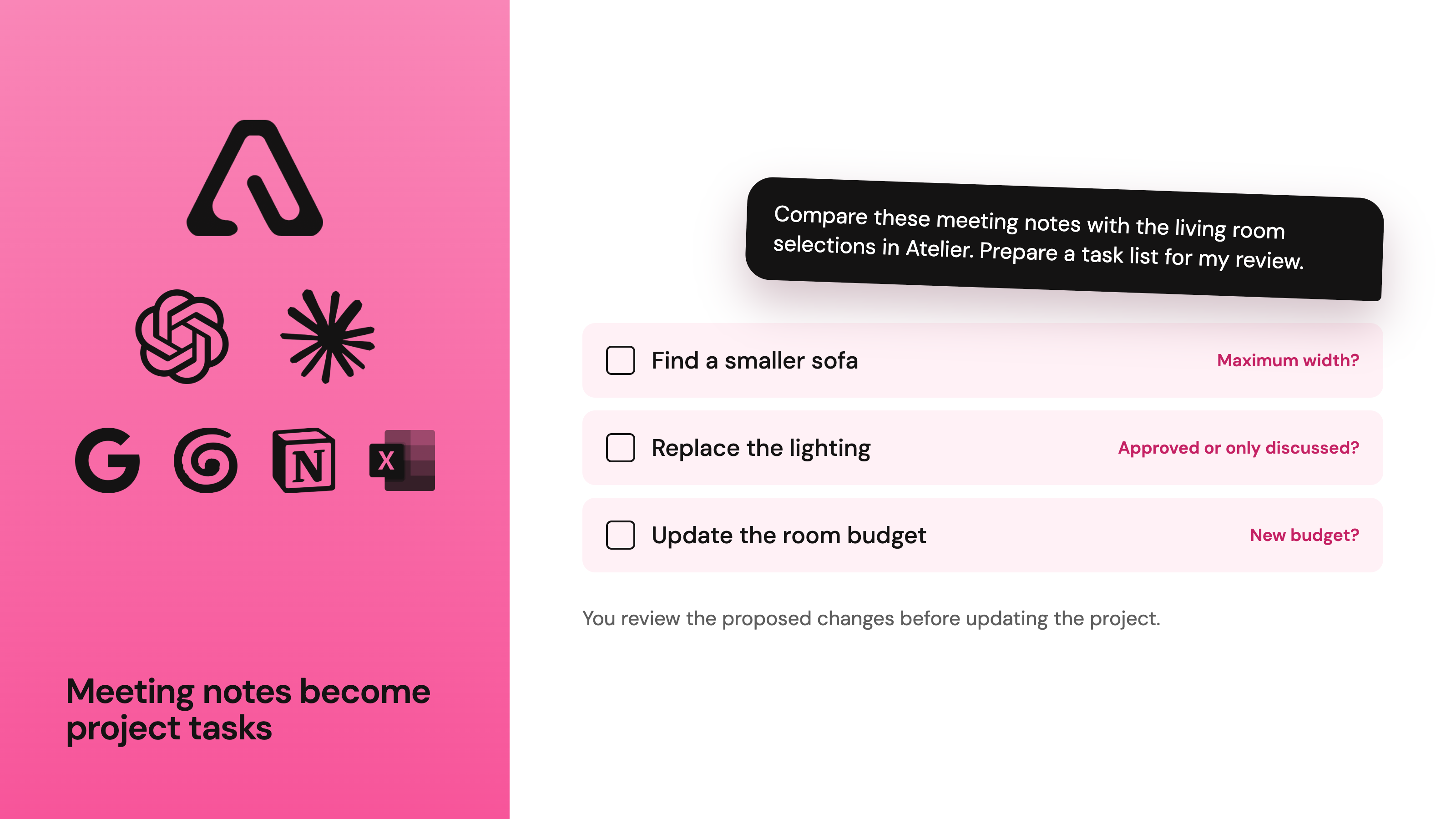
The task is to identify affected items, prepare actions and flag questions that still need answers.
Did the client give a new budget? Is there a maximum sofa width? Was the lighting change approved or only discussed?
You review the proposed changes before updating the project. Your meeting notes become connected to the selections and decisions they affect.
Find furniture alternatives using project requirements
Product sourcing involves more than finding something that looks right. Dimensions, materials, price and delivery all influence the choice.
Your project information gives an AI assistant useful context when comparing products from your studio library or supplier links you provide. Searching new supplier websites requires a separate web search or browsing tool in ChatGPT or Claude. Atelier’s own product search looks through your existing studio library.
Using the supplier links I shared, find three sofas under 240 cm wide that fit our updated budget and work with the living room selections. Compare them with the sofa we chose before.
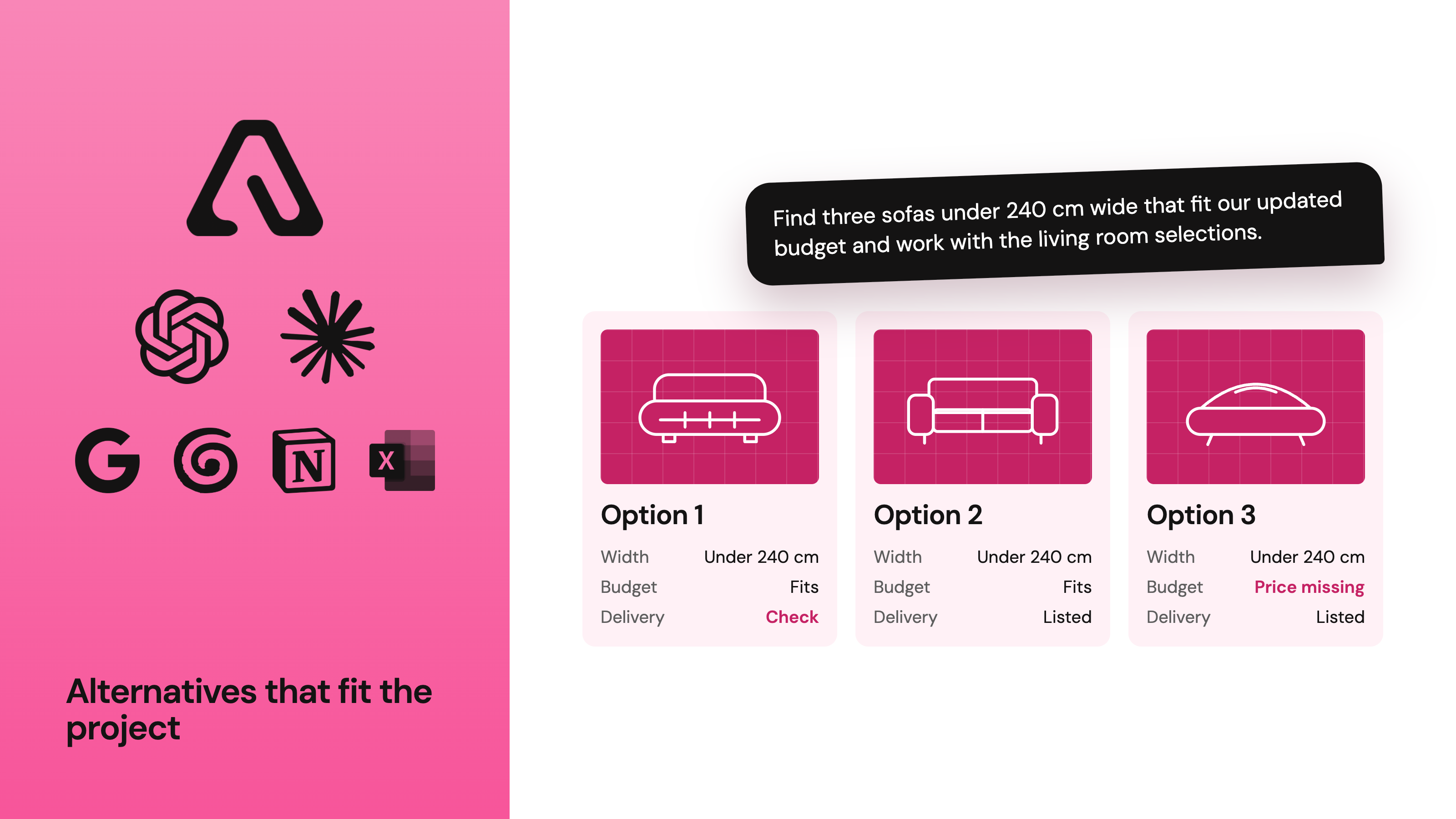
Ask for a comparison with product images, dimensions, prices and source links. Any missing details should be flagged for checking.
You still assess comfort, quality and how each option fits the design. Current prices, availability and delivery estimates also need confirmation before ordering.
The benefit is having your project requirements available during the search, with less time spent repeating details and organising the results.
Prepare client presentations from selected products
Once you choose the options to present, the next task is gathering images, descriptions, finishes and prices.
Much of that information already exists in your project.
With a suitable presentation tool connected, you can ask your assistant to use those details to prepare a draft.
Prepare a presentation with the sofa and lighting options I selected. Include images, dimensions and prices. Show how each option affects the room budget.
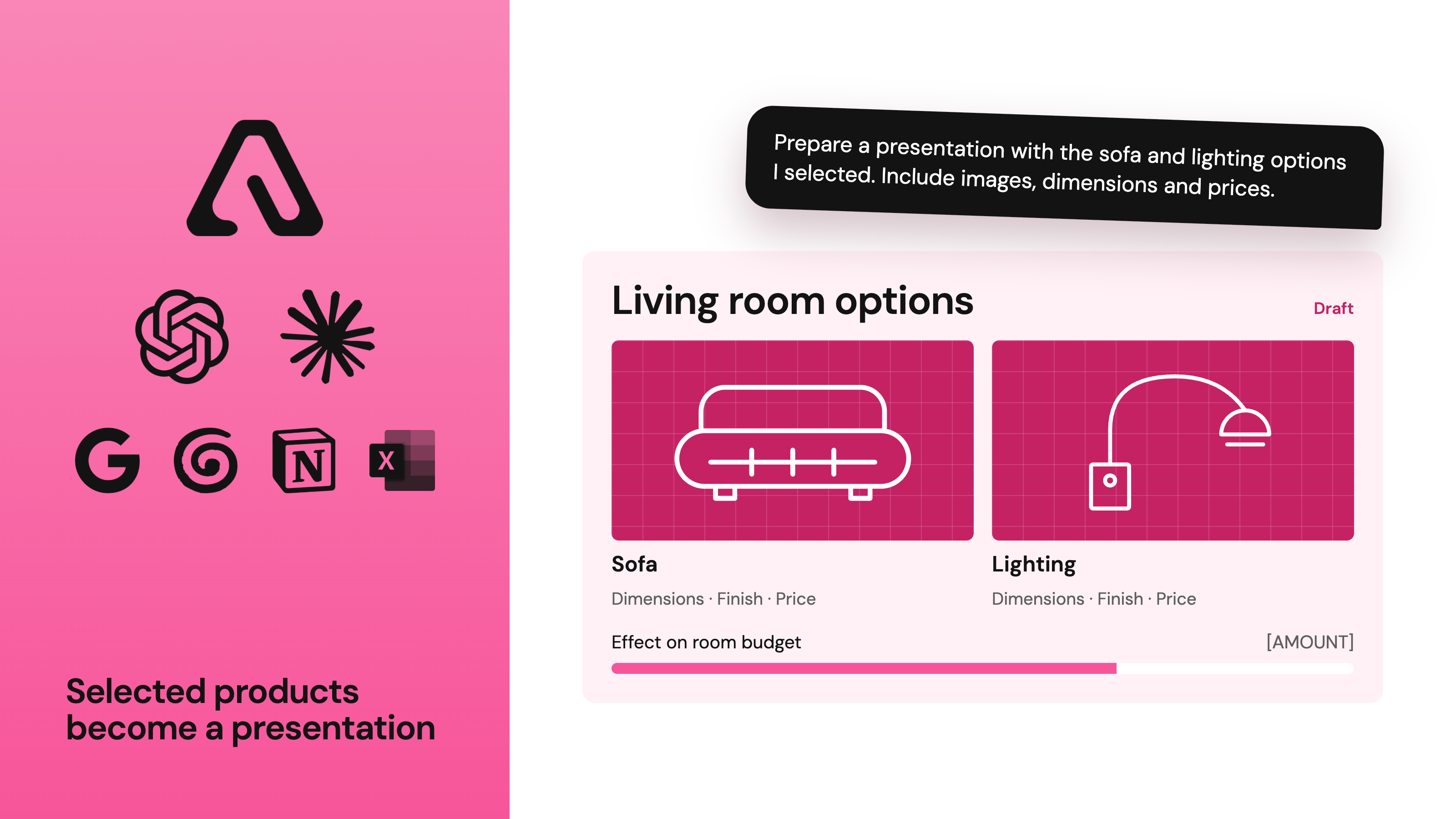
You review the content, refine the layout and add your design reasoning.
This connects three parts of the work. Meeting notes inform project changes. Project requirements guide product sourcing. Selected products become the basis of a client presentation.
Use Atelier alongside email and project files
A lot of project information arrives outside your design software.
A supplier sends a quote by email. A client shares comments in a document. Updated plans are saved in a project folder.
If those services are also connected to ChatGPT or Claude, your assistant can use the information alongside Atelier.
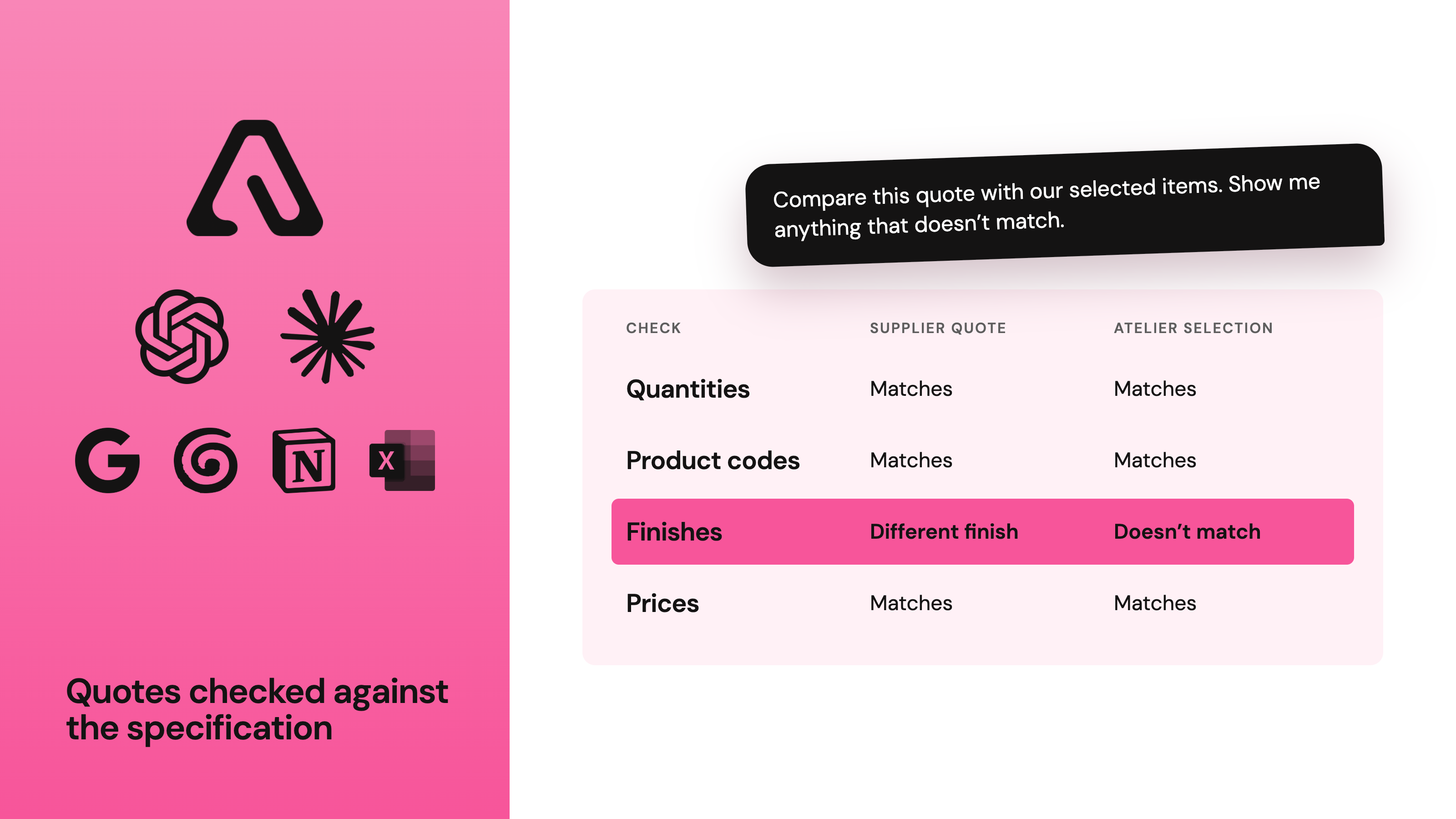
For example, you can ask it to compare a supplier quote with the project specification, flag differences and prepare questions for your review.
Compare this quote with our selected items. Check the quantities, product codes, finishes and prices. Show me anything that doesn’t match.
You can also bring information together for a project handover or a brief for a 3D artist.
Prepare a brief for the living room using the selected furniture and finishes in Atelier, the approved plans in our project folder and the client’s latest comments. List anything that’s missing.
The assistant needs access to each source involved. Once those connections are in place, you can work with the information in the same conversation.
Why we’re building Atelier to work with AI
Useful AI needs relevant information.
For interior designers, that includes the room, the budget, the selected products and the decisions already made. Keeping that information organised gives an assistant a stronger starting point.
Our goal is to reduce the time spent finding details, copying information and preparing routine updates.
You still review the work and make the design decisions. Connected tools help you prepare for those decisions with the project information at hand.
That has been part of the goal for Atelier from the beginning.
Common questions about Atelier and AI
Can Atelier connect to ChatGPT and Claude?
Yes. Atelier has an MCP connection for ChatGPT and Claude. The actions available depend on the supported Atelier tools and the setup in your chosen assistant.
Can I use Atelier together with my email and files?
Yes. If your email and file services are also connected to ChatGPT or Claude, your assistant can use them alongside Atelier in the same conversation. This brings your project details, documents and emails together, depending on the access you’ve enabled.
What do I need to use these workflows?
Connect Atelier to ChatGPT or Claude, then connect the other tools needed for your task, such as your email, file storage or presentation app. Your assistant can work with the information and actions you’ve given it access to.
Can designers schedule these tasks?
Scheduled tasks are our next step. We’re working toward letting designers choose what to check and when, so they won’t need to ask each time.
For example, a scheduled task could check project updates and prepare a weekly summary for review.
Which part would help you most? Or is there another task you’d love AI to help with?